A dark theme is easy to add and easy to get slightly wrong. The wrong versions are familiar: the page loads white and flashes dark a moment later, a choice you made last week is ignored, or the toggle overrides your system setting forever after one click. This is how I added a dark theme to my personal dashboard, and the three decisions that avoid those problems.
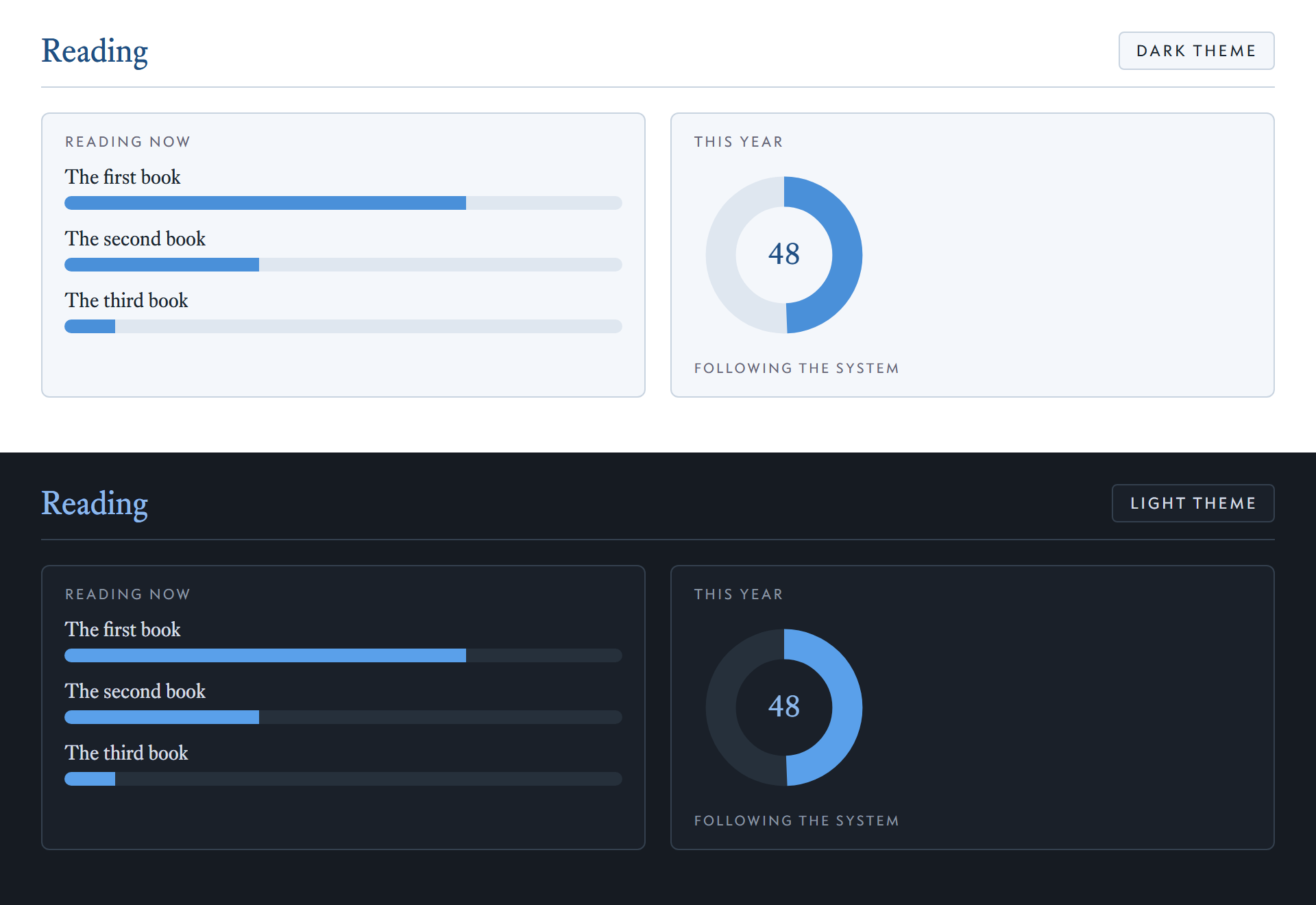
The screenshot is a small demo page that uses the real script, not the dashboard itself.
1. Follow the system until told otherwise
The default is whatever the operating system says. A media query reads it, and a class on <html> applies the theme:
var mq = matchMedia("(prefers-color-scheme: dark)");
function apply() {
  var t = saved();
  root.classList.toggle("dark", t ? t === "dark" : mq.matches);
}
mq.addEventListener("change", apply);
The change listener means the page switches the moment the system does, for example when Windows moves to its dark theme in the evening. A saved choice, if there is one, wins over the system.
2. A choice that matches the system is not a choice
This is the part that most toggles get wrong. When you press the switch, it would be natural to store your choice. But suppose the system is light, you press it, and you get dark, and then you press it again to go back. You have chosen "light", which is exactly what the system already says. Storing that would pin the page to light even when the system later turns dark.
So the toggle only stores a choice that differs from the system. If you pick what the system already uses, it removes the stored value, and the page follows the system again:
window.toggleTheme = function () {
  var dark = !root.classList.contains("dark");
  try {
    if (dark === mq.matches) localStorage.removeItem(KEY);
    else localStorage.setItem(KEY, dark ? "dark" : "light");
  } catch (e) {}
  root.classList.add("theme-anim");
  root.classList.toggle("dark", dark);
  label();
};
The button's tooltip says which state it is in, including "now following Windows" when nothing is saved. Reading and writing storage is wrapped in try, because storage can throw in private windows and with blocked site data, and a theme toggle should not break a page.
The four combinations come out like this:
- System light, nothing saved: the page is light.
- System dark, nothing saved: the page is dark.
- System light, saved choice dark: the page is dark.
- System dark, saved choice light: the page is light.
3. Decide before the first paint, animate only on a click
The script sits inline in the <head>, so it runs before the browser paints. The page therefore starts in the right theme, and there is no flash of the wrong one.
Transitions are a separate question. If the stylesheet always transitions colours, the page fades from white to dark as it loads, which is exactly the flash you were trying to avoid. So the transition is attached to a theme-anim class that exists for 300 ms, only while the toggle is clicked:
html.theme-anim, html.theme-anim * {
  transition: background-color .3s, color .3s, border-color .3s;
}
The part that is not CSS
Most of the dark theme is a block of overrides keyed on html.dark, with colours picked for each part of the page. One piece did not work that way. The dashboard draws donut charts as SVG with colours written into the markup, so changing the class changed nothing in them. The fix was to read the colours from CSS variables, with the old values as fallbacks so the charts still work if a variable is missing:
`<circle ... style="stroke:var(--donut-track,#e6edf5)" .../>
 <text style="fill:var(--donut-num,#1f4f84)">...</text>`
Any colour baked into markup or into JavaScript-generated SVG is invisible to a stylesheet, and it shows up late, as one chart that stays pale on a dark page.
A short checklist
- Default to the system setting, and listen for it changing.
- Store a choice only when it differs from the system.
- Set the theme in the
<head>before first paint. - Animate the switch, not the page load.
- Search for colours written outside the stylesheet: inline styles, SVG attributes, canvas drawing code.